Tutorials · 2 min
How to make photos look vintage on iPhone
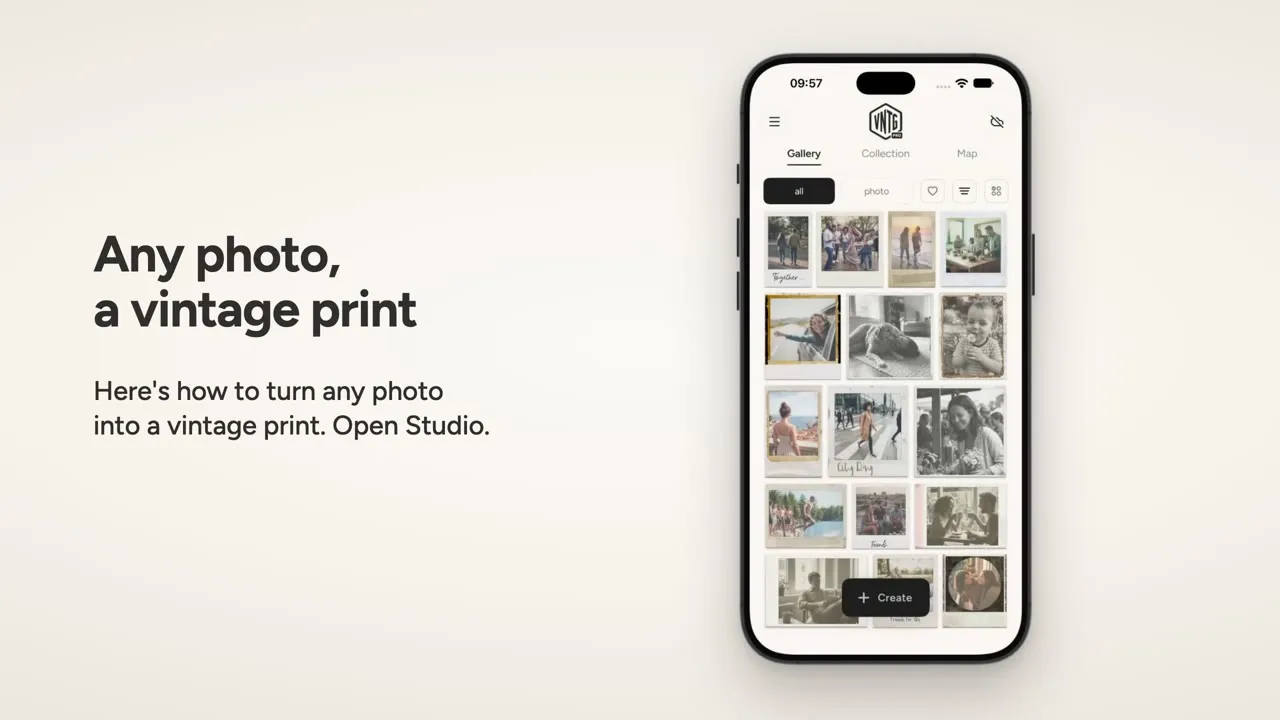
Any photo on your iPhone can come out as a print from another decade. Here is the whole thing in VNTG Studio, from the camera roll to the finished print, in about a minute and a half.
Step by step
-
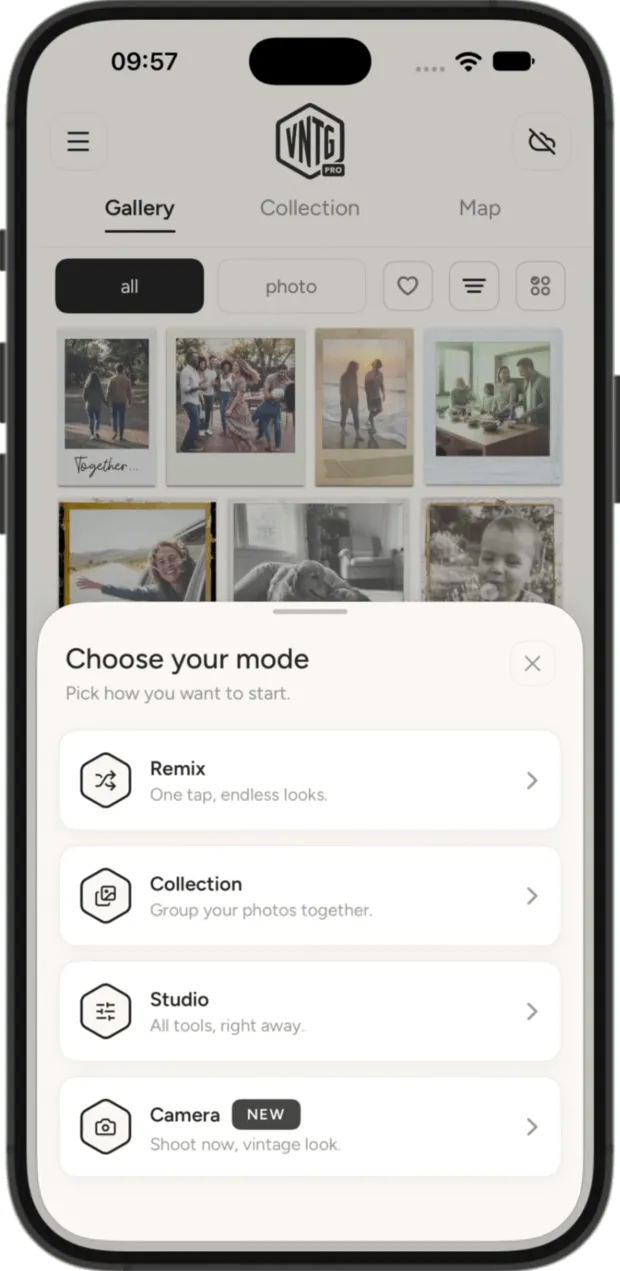
1
Open Studio
In VNTG, tap Create and choose Studio.
-
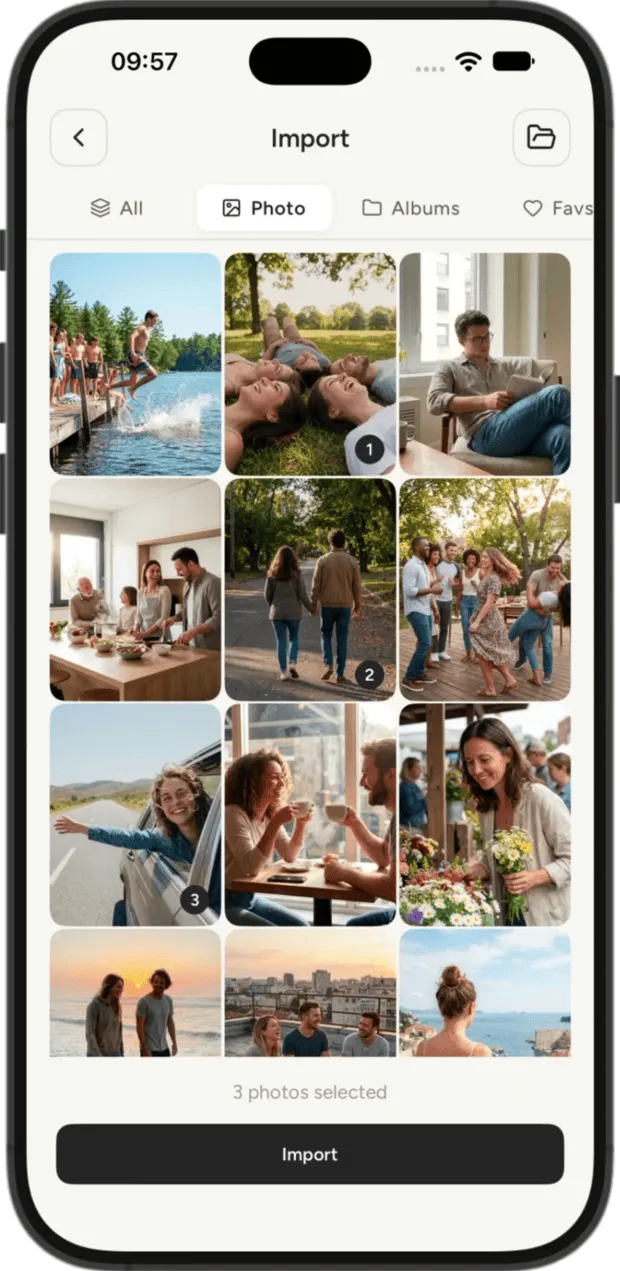
2
Pick your photos
Choose one photo or several from your camera roll, then tap Import.
-
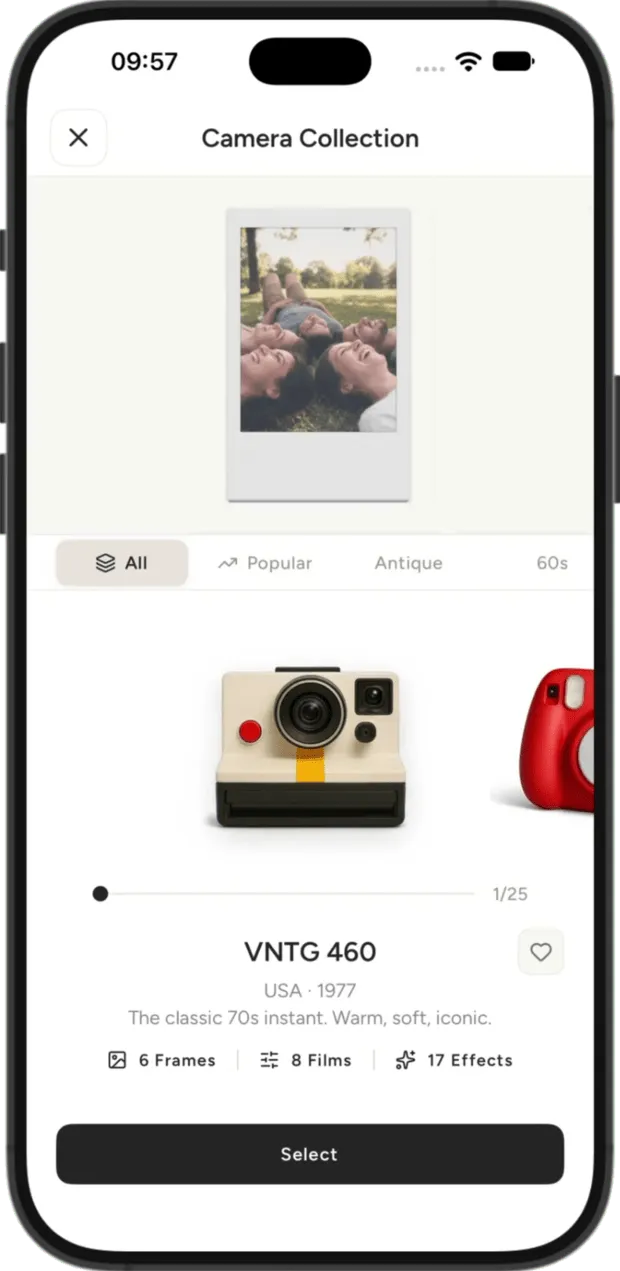
3
Choose your camera
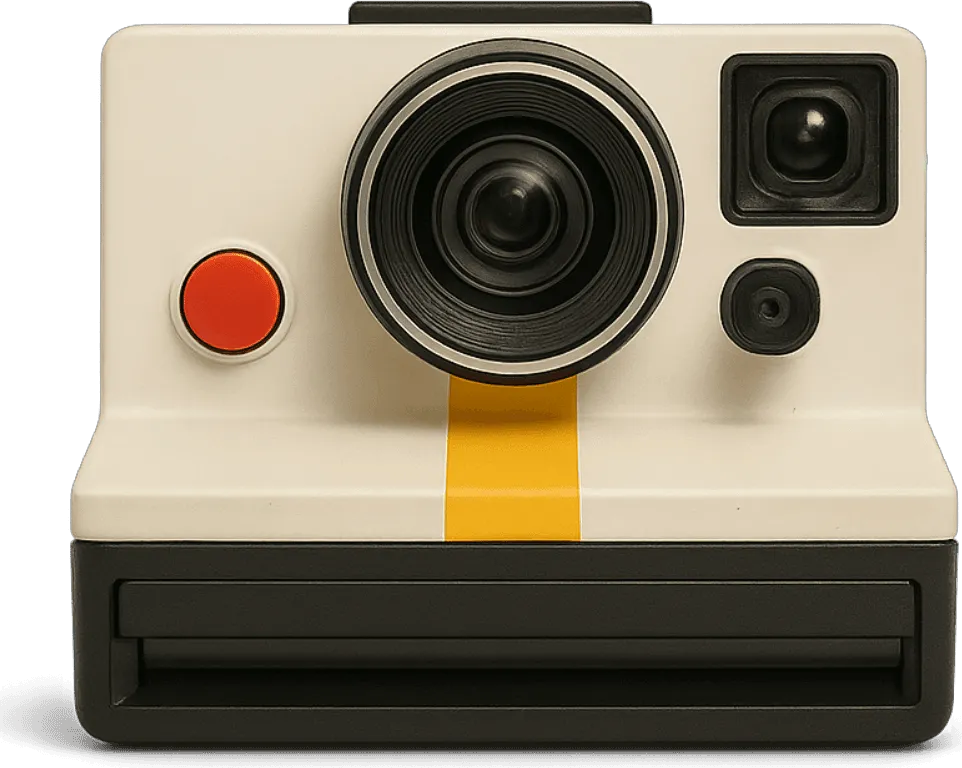
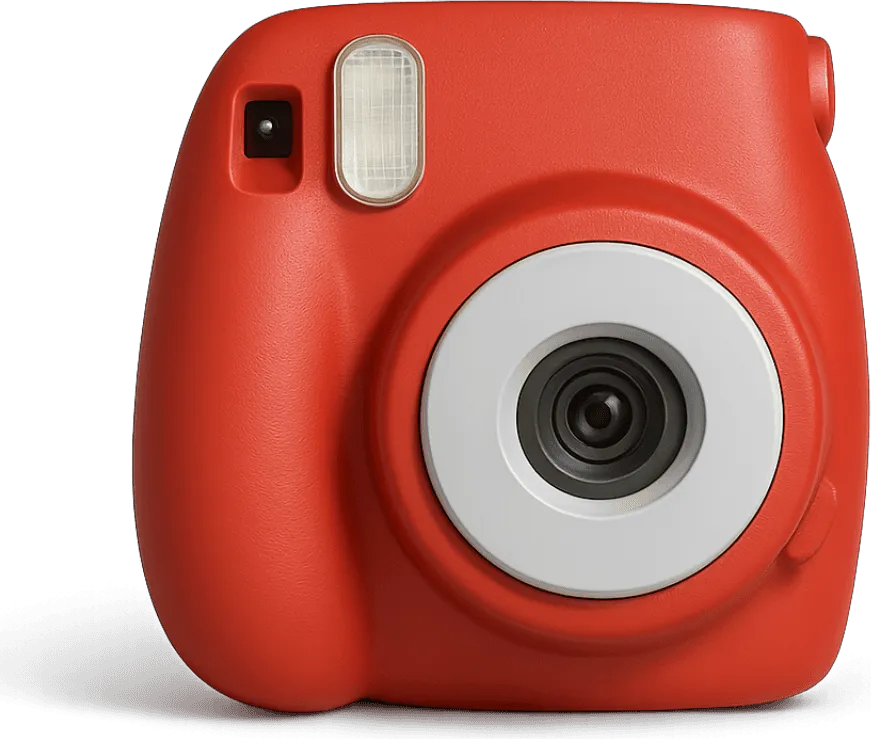
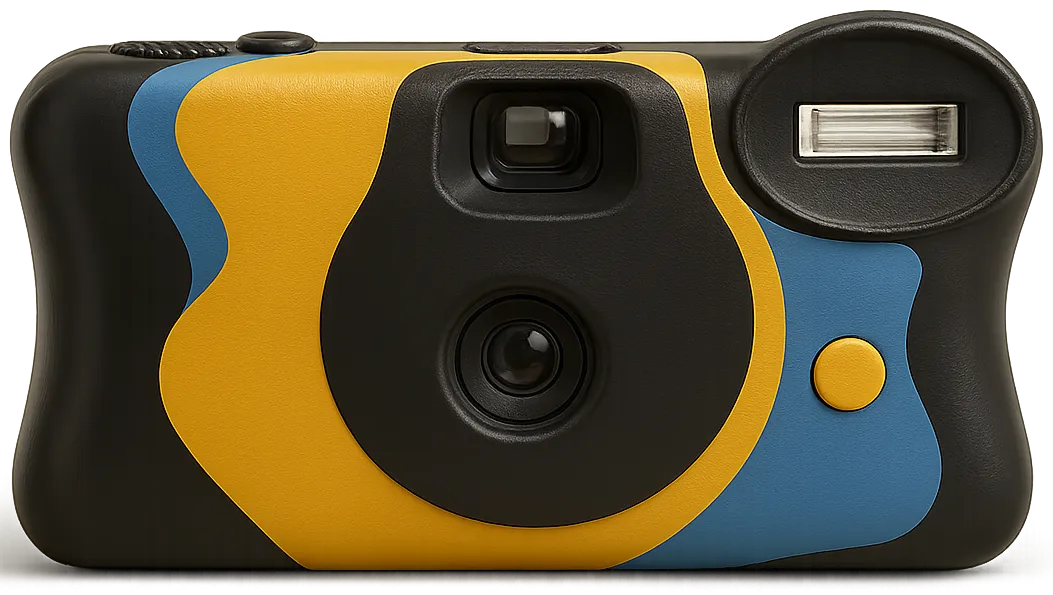
The camera shelf opens. Swipe through 25 cameras, each from its own era, and tap Select.
-
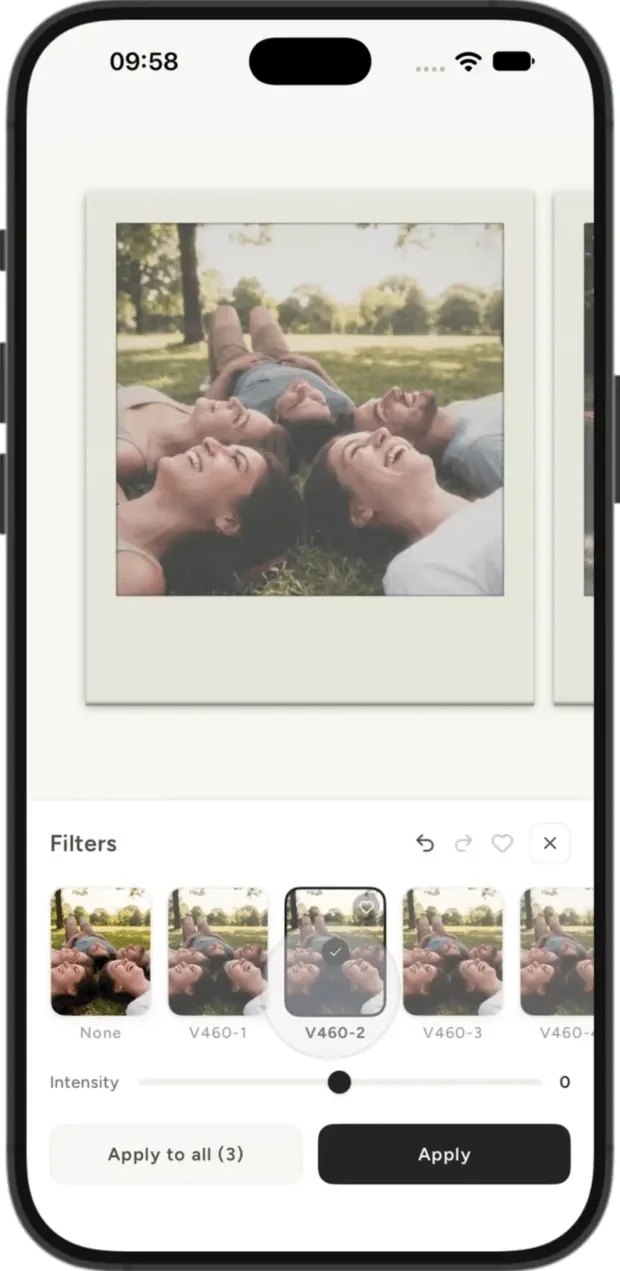
4
Pick a filter
Tap Filters and the print changes as you choose one. Every filter belongs to that camera and its era, so the look stays true to it.
-
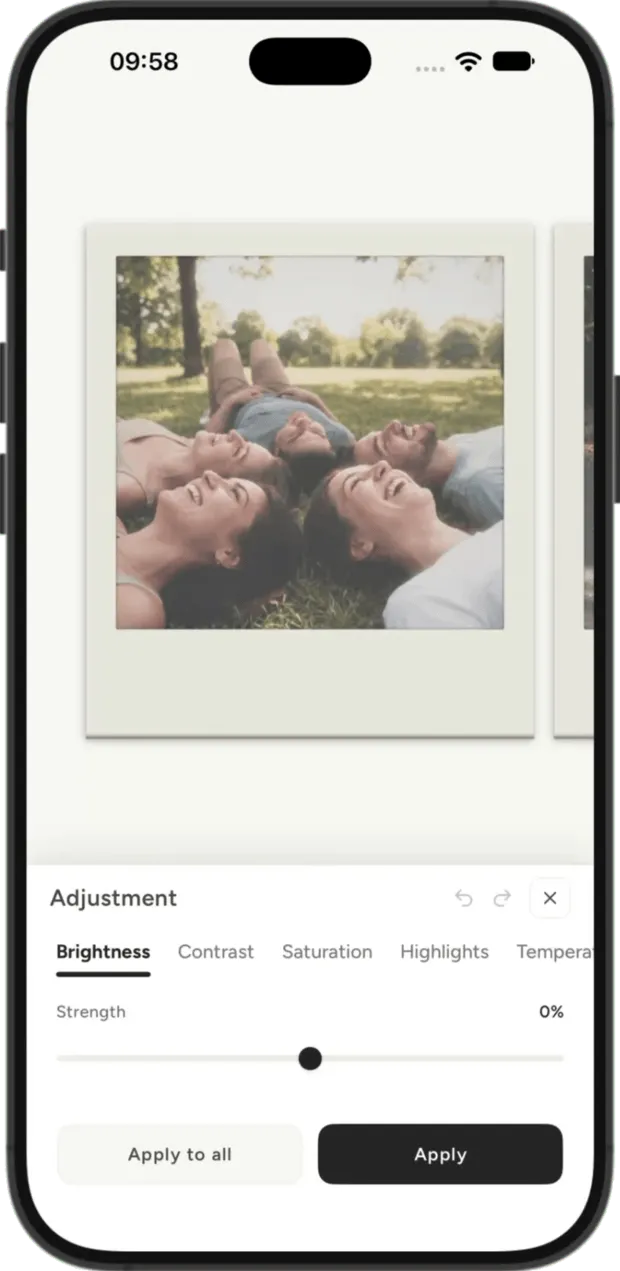
5
Add effects and adjust
Effects add grain and texture. Adjust fine tunes brightness, contrast and warmth.
-
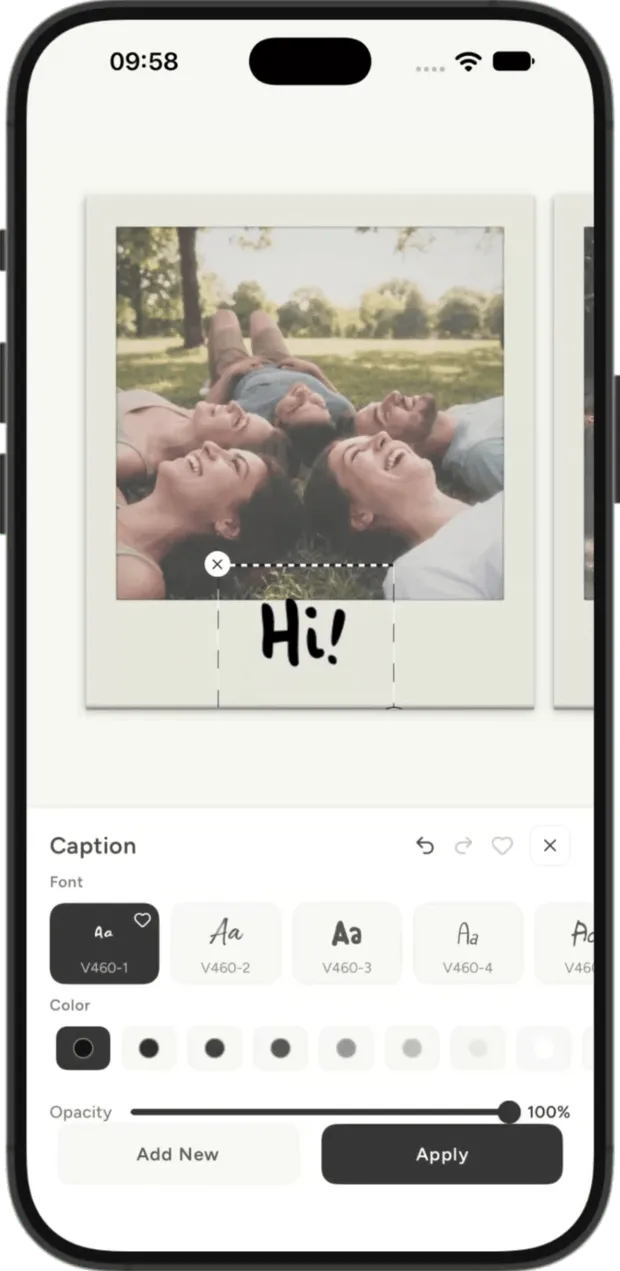
6
Write a caption
Type a caption onto the print, the way you would write on a photo. Every camera brings its own handwriting. Drag it anywhere on the frame.
-
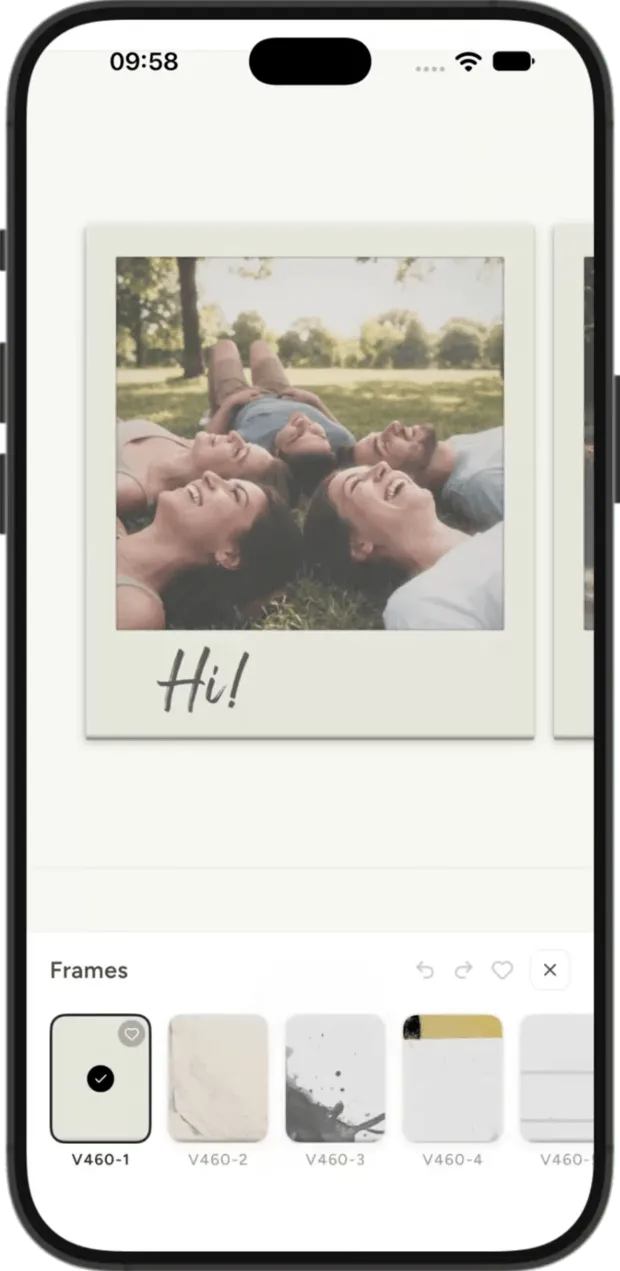
7
Add a frame
Find the frame that fits, then tap Apply to all and every photo in the set takes the same look.
-
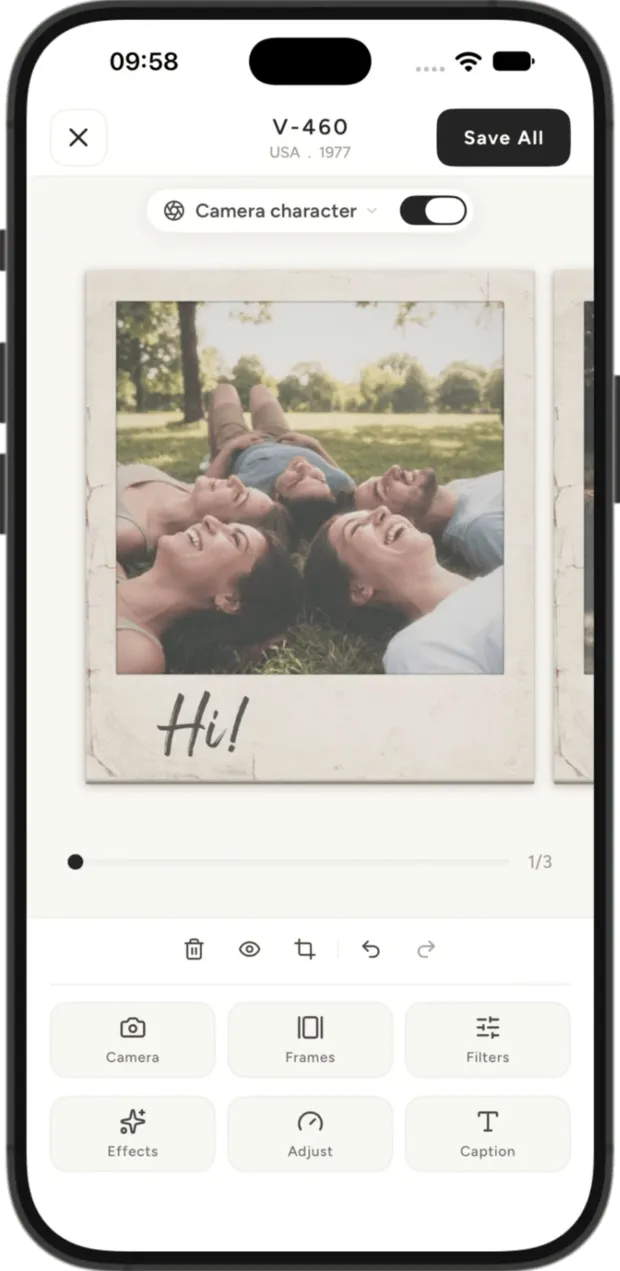
8
Save all
When it all looks right, tap Save All. Your prints land in the VNTG gallery, ready to keep, print or share.
Studio is free with the free cameras, 5 saves a day. Editing a whole set at once, every camera and unlimited saves come with VNTG PRO.
Keep going
 Free on iPhone
Try it on your own photos.
VNTG is free to download on iPhone.

4.7 from 39,000+ ratings